FROM TWO REFERENCES TO ONE REVIEWED PREVIEW
Flat lay to model photo: a tested workflow
A flat-lay garment photo is one input. TryOnSwap also needs an adult model reference. This guide follows one actual generation, shows both inputs and the result, then checks what changed before the image is used.
Open the studioSign-in required. Prepare both references, confirm the content policy and check the current credit total before generating.
The flat lay, the model reference and the actual output
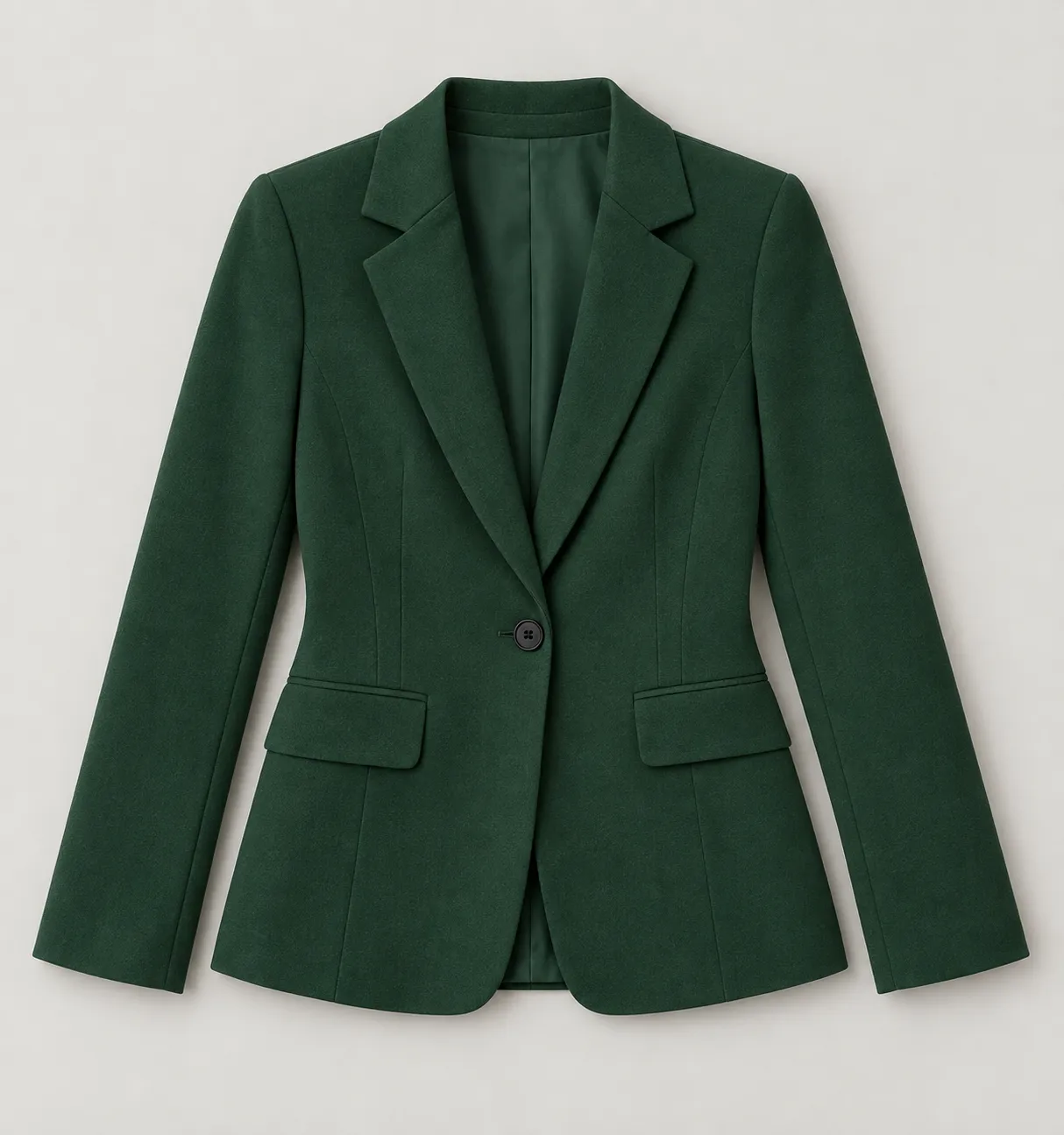
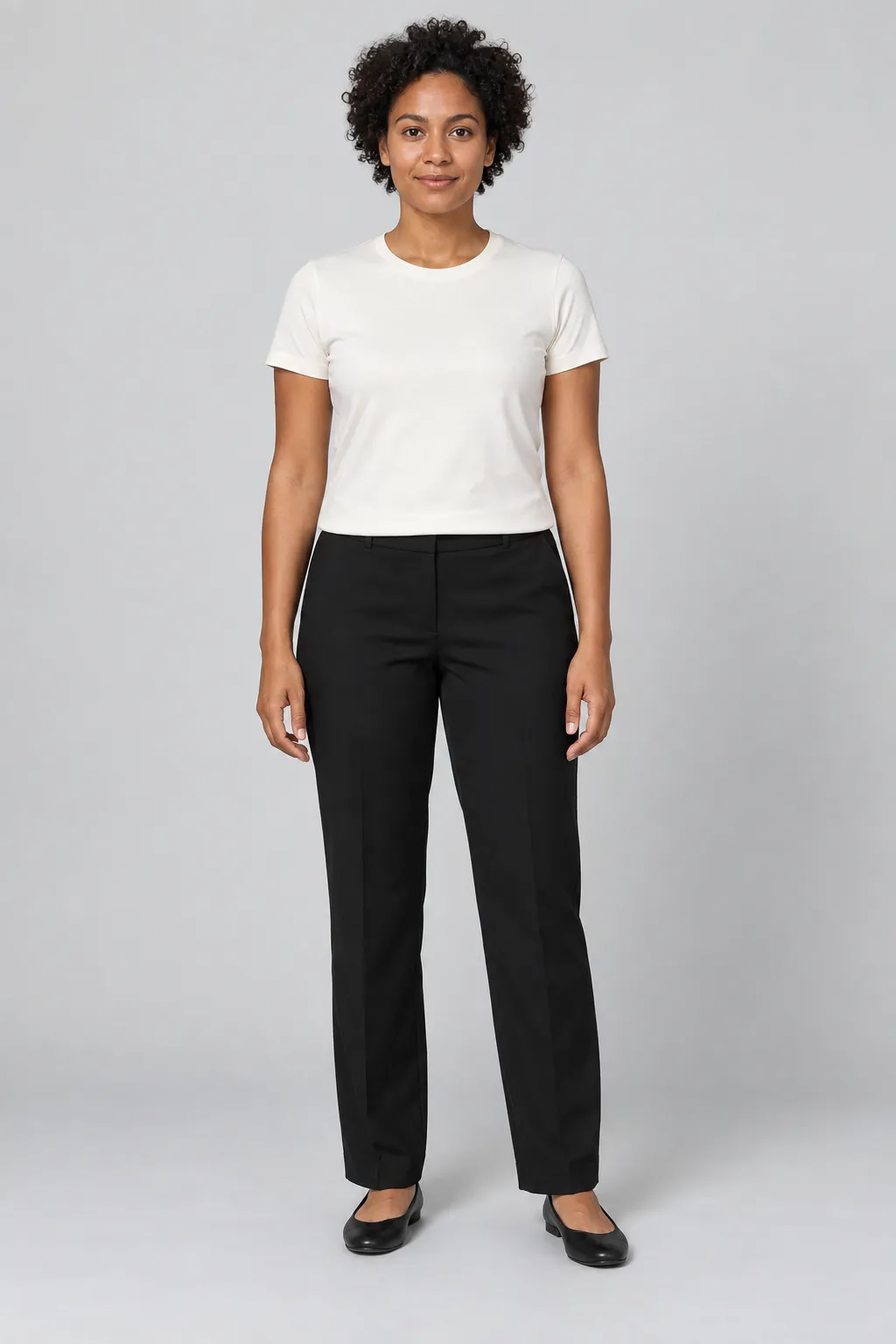
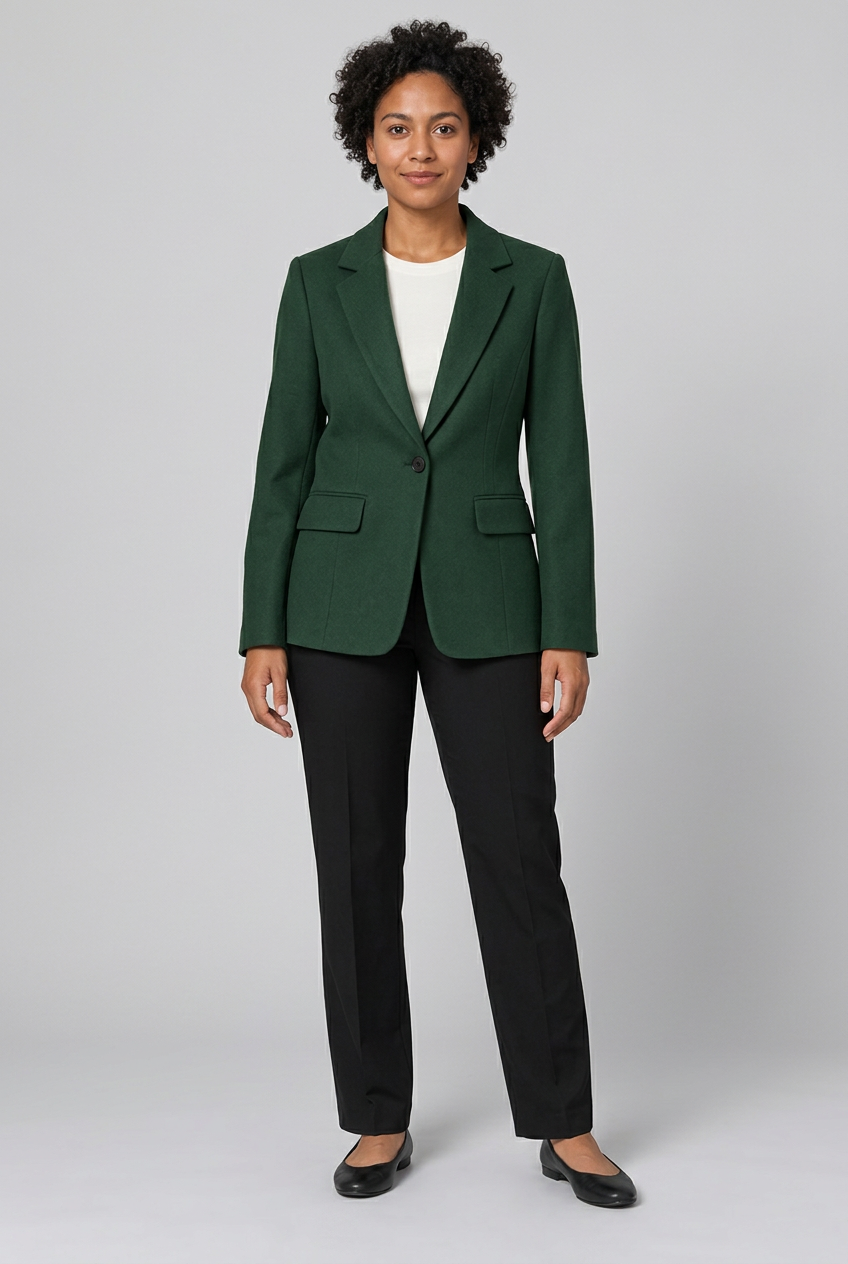
These are the two supplied reference files and the original result from the October 14 test. Open the result at full size when comparing details; the preview is not a fit, sizing or fabric measurement.
1. Garment reference
2. Model reference
3. Actual TryOnSwap result
Settings used for this case
- Workflow
- Scene try-on · Top / bottom
- Required inputs
- Model photo + Top — front
- Scene
- Studio · professional
- Generation model
- Nano Banana 2
- Output selection
- 1K · 2:3 · 1 image
- Recorded cost
- 4 credits for this single generation on October 14, 2026
This records the case settings, not a future price or a promise of identical output. The studio calculates the total for your selected model, resolution and image count. Check that total each time.
Extra instructions used in this case
Dress the adult model in the dark green blazer from the garment reference. Keep the black trousers and shoes, preserve the face and pose, and use a clean professional studio background. Keep the outfit fully clothed.
The request describes the intended scene. It does not establish that every detail was preserved; compare the output below with the references.
Prepare two clear references
For your own item, use real product photographs and an adult person photo you own or have permission to use. A text prompt alone does not replace either required reference.
Show the whole garment
Use a clear front view with the collar, sleeves, hem and fastenings visible. Keep the background simple and lighting even. Add useful back or side references when you have them; do not invent hidden construction in a prompt.
Keep the person and clothing area visible
Choose an adult model reference with a clear face, body and pose. For a full-length preview, keep the feet in frame. Confirm that you have permission to use the image and likeness.
Keep real detail photos nearby
Retain close-ups of pockets, buttons, seams, labels and fabric. You need them for the review: a plausible-looking AI image can still change product details.
Follow the current studio steps
The labels below were checked in the English studio on October 14, 2026. Start with one image so you can inspect the result before trying more variations.
Sign in and confirm the content policy
Open the studio and sign in. Confirm the adult-person and image-rights statements before uploading or generating. Use permitted, fully clothed references for this example.
Choose Scene try-on and Top / bottom
This case uses a new studio scene with a blazer as the top. Choose Scene try-on, then Top / bottom. Other edit modes have different input requirements; they are not the case shown here.
Fill Model photo and Top — front separately
Add the person to Model photo and the blazer front view to Top — front. Use the separate slots or select the matching images from your asset library. Check both previews so you do not reverse the inputs. The studio accepts JPEG, PNG and WebP; follow its current size and review messages.
Set one scene and review the total
Choose Studio · professional, 1K, 2:3 and 1 image for the setup shown here. The recorded case used Nano Banana 2, as documented in the case settings above. Add the extra instructions shown above if they suit your references. Read the actual credit total and balance before clicking Generate.
Generate once and watch the batch status
Click Generate once. Let the batch finish rather than sending duplicate requests while it is processing. The studio tracks the running task; there is no guaranteed completion time in this guide.
Open the result, compare, then decide
Open the completed result in the canvas and use Review image or Compare with original where available. Compare it with both references and your real garment detail photos. Download only after the review; a completed task does not mean the picture is accurate enough for a listing.
What this result gets across—and what still needs checking
The output shows the adult model wearing a dark green blazer while retaining black trousers and shoes. That completes the demonstrated workflow. Product-detail acceptance is a separate decision.
Collar, pockets and fastenings
Compare lapel shape, pocket position and flap construction, button count and closure. Check both sides rather than judging only the overall silhouette.
Length, fit and material
Look at hem and sleeve length, seams, fabric color and texture. The image does not measure fit or verify the real material. Keep accurate product and detail photographs available.
Person, pose and scene
Check face, hands, proportions, posture, shoes and background. This single example has no quantified face-consistency score or general quality guarantee.
If an important product detail changes, do not publish the image as evidence of that detail. Improve the reference or refine a candidate if appropriate, checking the new cost first. Review every new result again.
When something goes wrong
Generate is waiting for a reference
Check Model photo and Top — front for this setup. A garment-only flat lay is not enough. Read the required-slot message and fill the missing input.
The upload is rejected or review is unavailable
Follow the studio message and replace the image or try again when review is available. Required image safety review must pass before the upload can be used; a failed review cannot be skipped.
Optional photo analysis is unavailable
The October 14 generation completed even though optional photo analysis showed an unavailable message. That records one past observation, not its current service status. If the studio shows “Photo analysis is unavailable right now; generation still works,” check the references yourself and follow the remaining controls. Required image safety review is a separate step.
The generated picture changes the garment
Compare the original photographs, especially the detail areas above. Add clearer references or adjust one instruction at a time. A retry or refinement is a new generation with its own displayed cost, not a promise of exact reconstruction.
A generation fails
Read the batch’s status and failure message. If it shows Credits refunded, confirm the displayed balance or credit history before starting again. Follow the pending or error message when a refund is not yet confirmed. Deleting a result or a running batch is not a cancellation or a refund.
Flat-lay workflow questions
Can I use a flat-lay photo without a model photo?
Not for the workflow shown here. Scene try-on uses the adult model photo plus at least one garment reference. The example puts the blazer front view in Top — front.
Is the green-blazer output a real TryOnSwap generation?
Yes. It is the original output of one October 14, 2026 generation using the two displayed synthetic references. It is not a customer photo, and the pocket-detail differences remain visible.
Will the same settings give me the same image?
No identical output is promised. The settings document this case. AI outputs vary, and you must check each new image against your references and real item.
Can this image replace all my product photos?
It does not verify construction, material, fit or sizing. Keep real photographs for product accuracy and follow the requirements of the channel where you intend to use an image.
Prepare, test one image, review the details
Use the tutorial for the complete product workflow. Use the related guides for the task that comes before or after it.
Open the studioSign-in required. Prepare both references, confirm the content policy and check the current credit total before generating.