
A BRIDAL LOOK, BEFORE THE FITTING
Virtual wedding dress try on
See a wedding-dress direction on your own photo. Bring a full-length person picture and a clear gown reference, then use One-piece in the TryOnSwap studio to explore a visual preview.
Open the studioSign in, choose One-piece, then add your person and dress images. Generation uses credits.
See the photo guide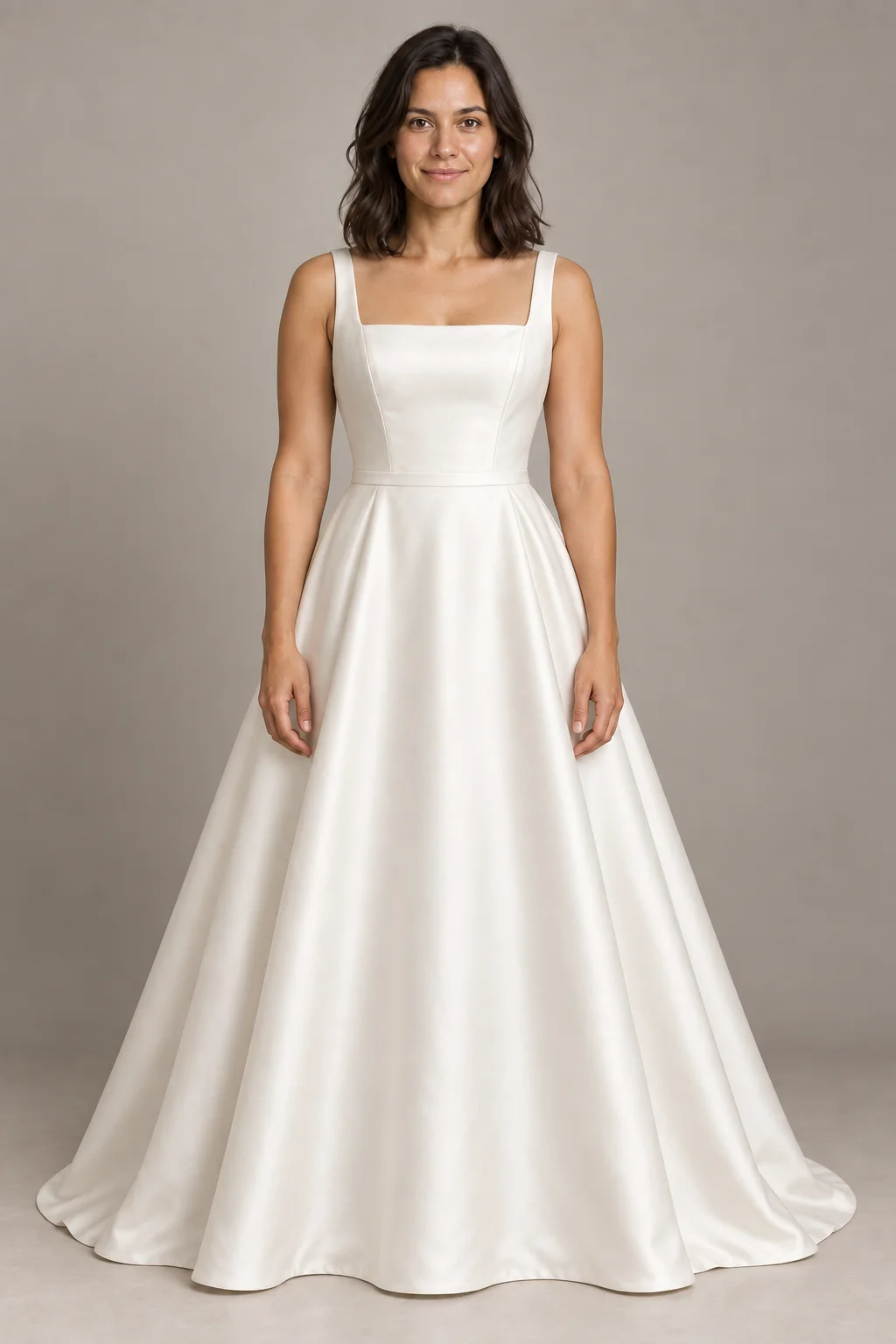
THE PHOTO GUIDE
Two references. One visual direction.
These three images were made outside TryOnSwap for this guide. The dressed concept was not produced by uploading the two references to TryOnSwap. Use the sequence to understand what photos to prepare, then judge your own generated result separately.
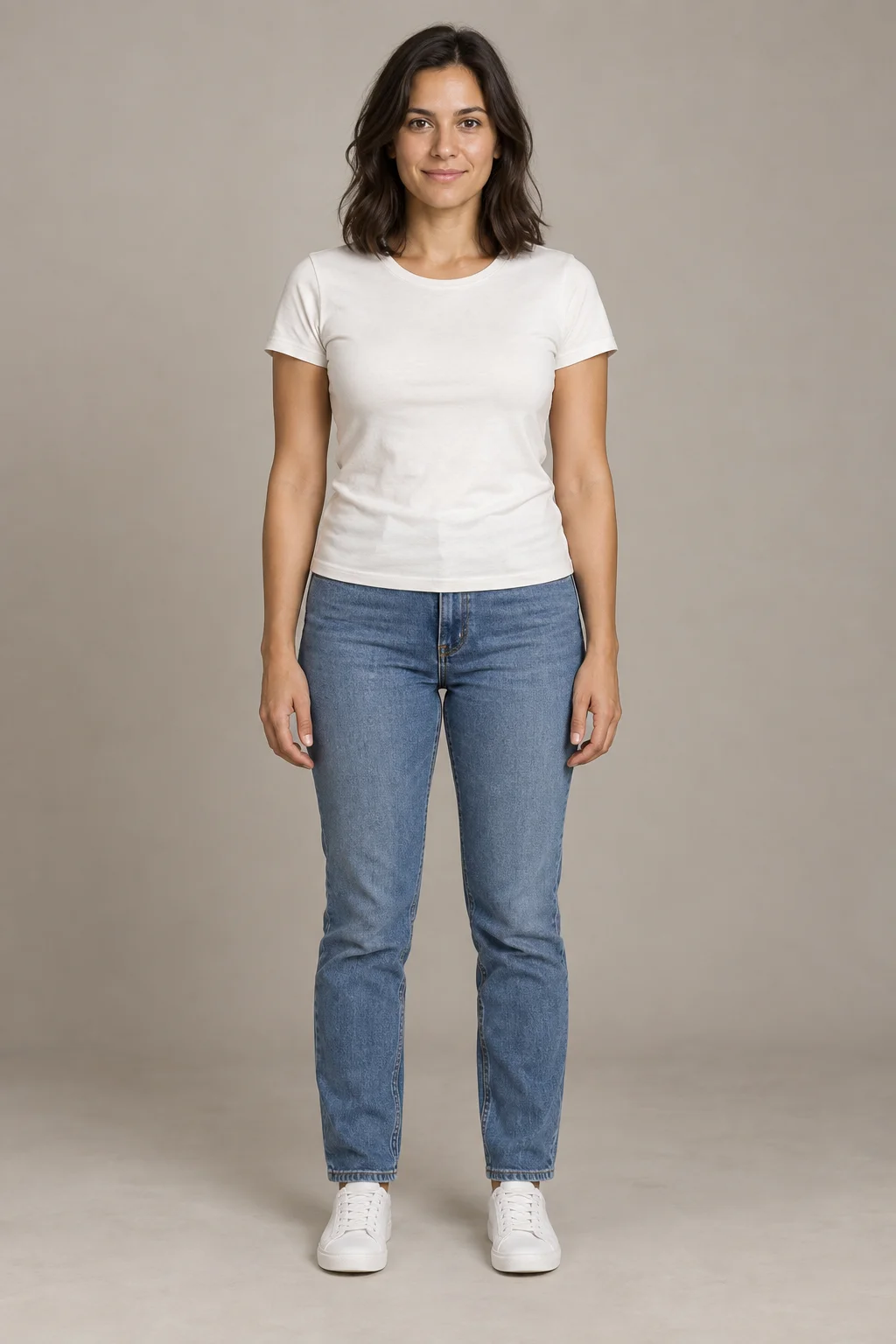
A person photo
Use a clear adult photo you own or have permission to use. Keep the person visible from head to toe, with even light and little obstruction.
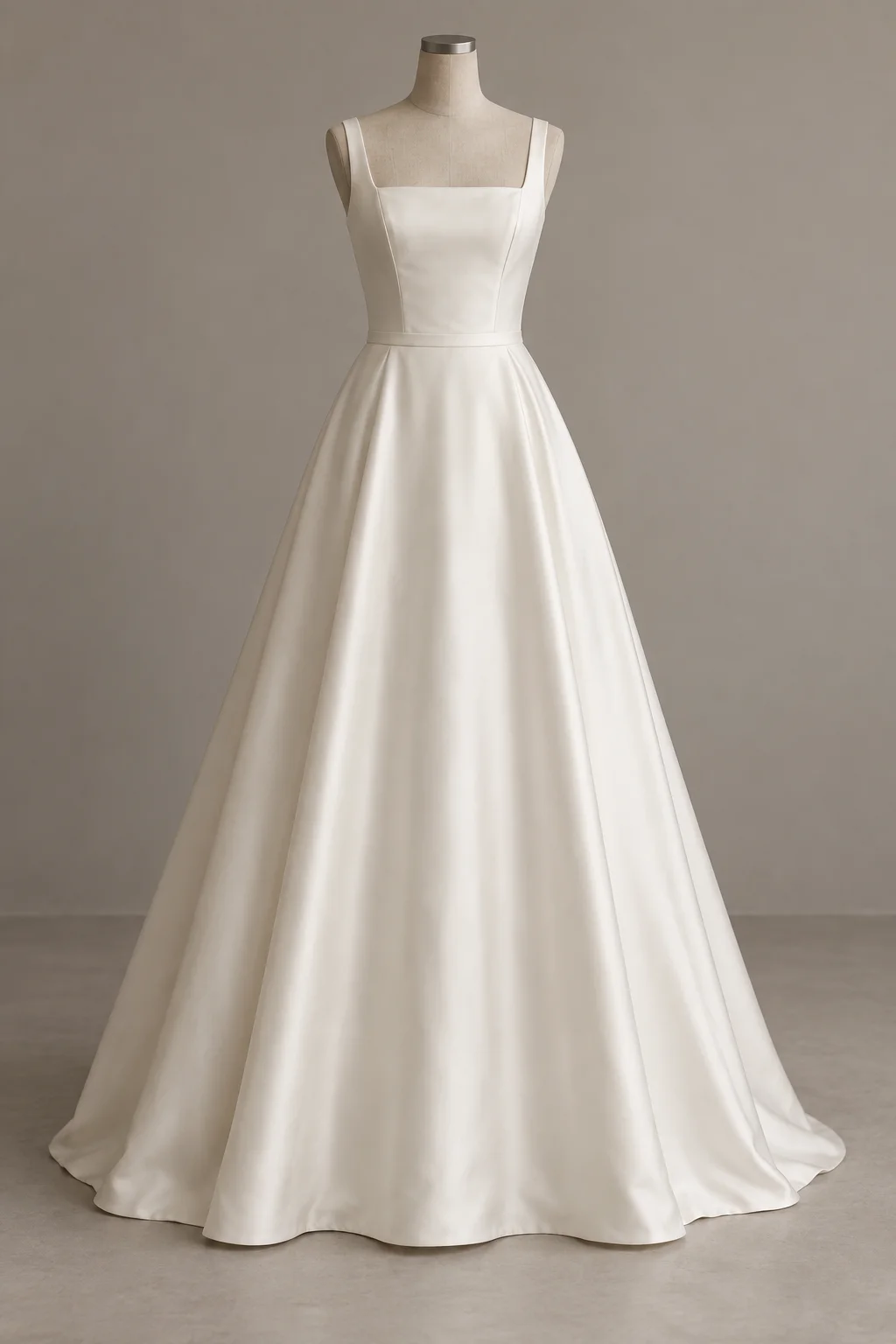
A gown photo
Start with a front view that shows the neckline, waist and hem. Add back or side views in the studio if you have them and the input slots are available.
A concept preview
This is an illustrative target, not a TryOnSwap output. Your own AI image may alter the cut, fabric, color, face or proportions.
IN THE STUDIO
How to explore a wedding dress on your photo
- 01
Prepare a straight-on person photo
Choose a well-lit, full-length adult photo. Make sure you have the right to use it, and leave room around the body so a long skirt has space.
- 02
Collect the exact gown references you may use
A front view is the starting point. Close-ups of lace, buttons, straps or a train help you review the result later; a single image cannot prove every construction detail.
- 03
Choose One-piece and generate
Open the studio, choose One-piece, add your person image and the gown front reference, then create a visual candidate. Sign-in is required and generation uses credits.
- 04
Compare, then book a real fitting
Check the neckline, waist, hem and color against the original gown. Keep a real fitting and seller measurements for size, movement and comfort decisions.
What to check in a bridal preview
Wedding gowns have details that are easy for image generation to reinterpret. Use the picture for direction, then verify each detail with the original garment.
Neckline and straps
Compare the shape and placement of the neckline, sleeves or straps. A small change can make a different dress.
Waist, skirt and train
Look for changes to the waist seam, volume, hem length and any train. The preview cannot tell you how the gown moves in person.
Fabric and embellishment
Satin shine, lace motifs, beadwork and ivory tones may shift. Ask the boutique for real photos and swatches before deciding.
Virtual wedding dress try-on questions
Do I need photos, or can I describe a dress in text?
This workflow needs a person photo and a gown image reference. Text can help with direction, but it does not replace the image inputs shown here.
Can this tell me my wedding dress size?
No. An AI visual preview is not a body measurement or a fitting simulation. Use the seller’s size chart, measurements and an in-person fitting for sizing.
Will the dress look exactly like the listing photo?
No. AI images can change color, neckline, lace, seams and proportions. Compare every generated candidate with the real gown reference before sharing it or using it to decide.
Are the images above results from TryOnSwap?
No. The person, dress and dressed concept were generated outside TryOnSwap as teaching illustrations. They are not a customer case or a measured product result.
Can I upload a boutique or photographer photo?
Only use images you own or are permitted to upload, and use an adult person photo with their consent. Check the source image rights before sharing an AI preview.
START WITH THE REAL REFERENCES
Bring a photo and a gown idea. See the direction.
Use the One-piece workflow for a visual candidate, then make your real dress decision with the garment and a fitting.
Open the studioSign in, choose One-piece, then add your person and dress images. Generation uses credits.